
How Market Mode Works
A Guide to Oppy Market Mode
The easiest way to accept contactless payments on your phone at your market stall or pop-up in Australia.
Setup is free and only takes a few minutes. No additional hardware required, just your phone. Manage your online and market sales all in one place.
Setting up Market Mode
01
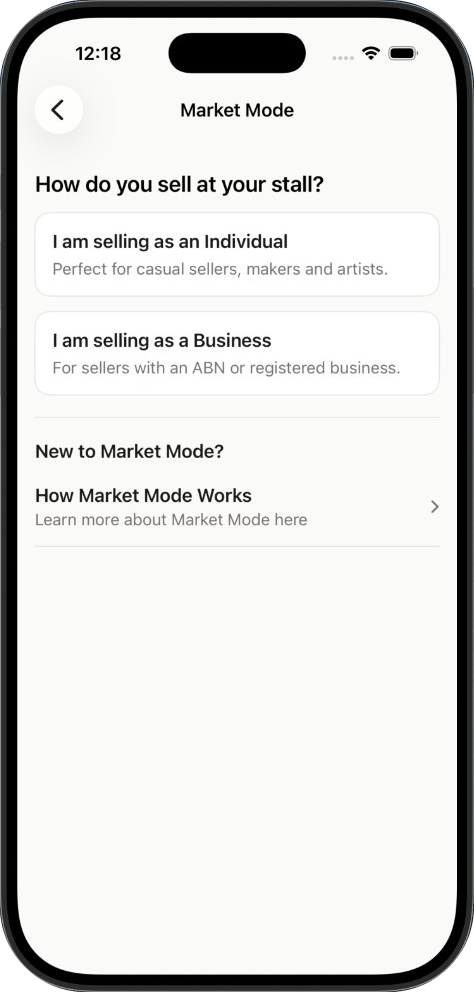
Once Payouts are set up, you can set up Market Mode. Select whether you are selling as an individual or a business. You may be asked to enter a few more details regarding your business.
02
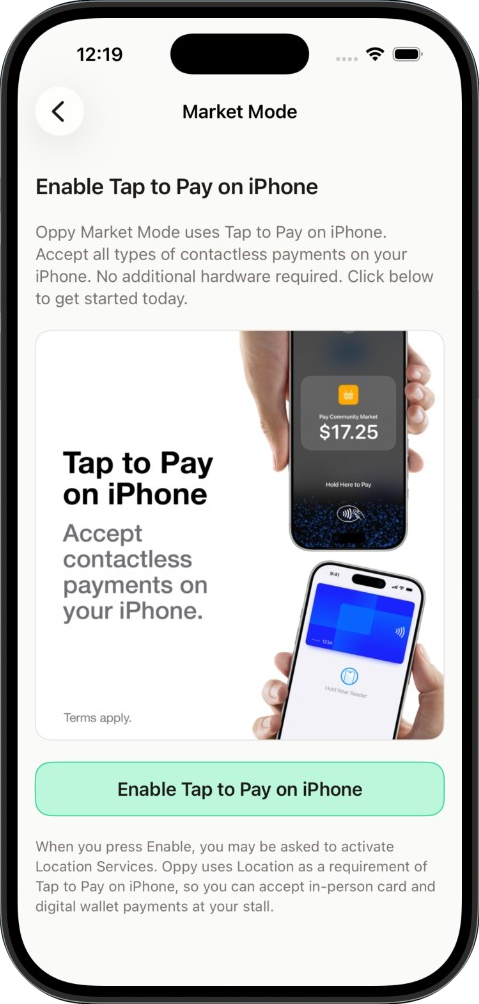
Enable Tap to Pay on iPhone or Tap to Pay (Android) — which checks your phone’s eligibility to receive tap payments and prepares your phone to take payments. You may be asked to enable your Location — which is required when using Tap to Pay.
03
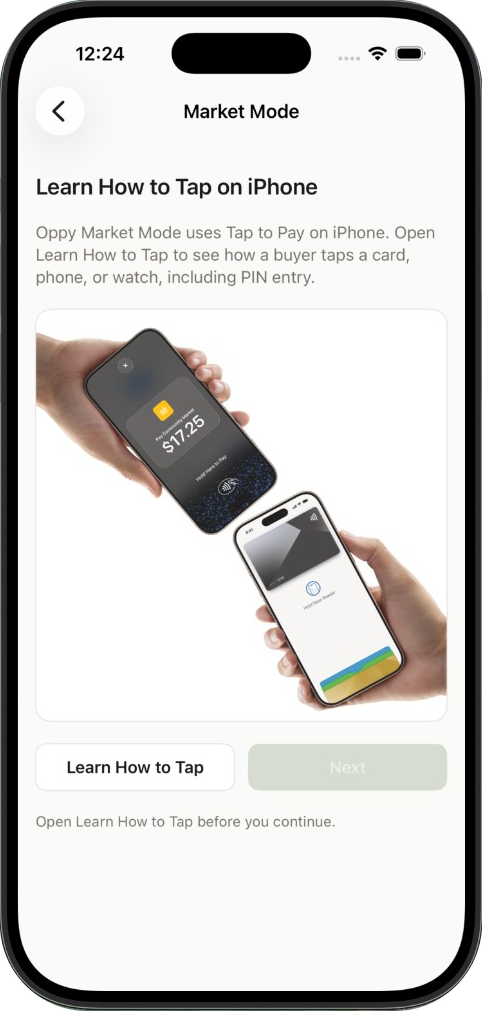
Follow the Learn How to Tap guide.
04
You’re all set! Start accepting contactless payments on your phone. Yes, it is that easy.
Phones that can tap
- On iPhone, Tap to Pay needs iPhone XS or later. iPad is not supported.
- On Android, Tap to Pay needs Android 13 or later with NFC.
- Chip and swipe are not available. If a card cannot tap, ask for another contactless card or wallet.
Selling with Market Mode
01
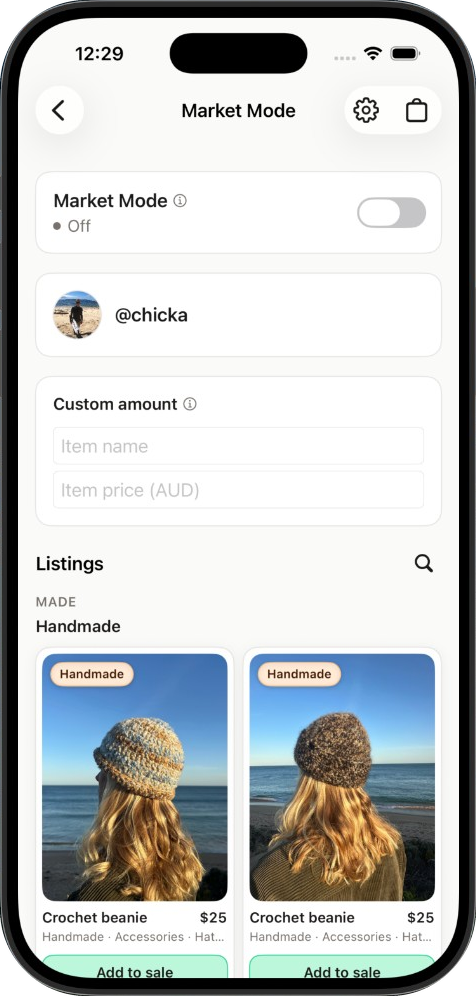
Turn Market Mode on for your stall day. Buyers cannot check out your listings online while it is on — they can still view them, message you, and make offers.
02
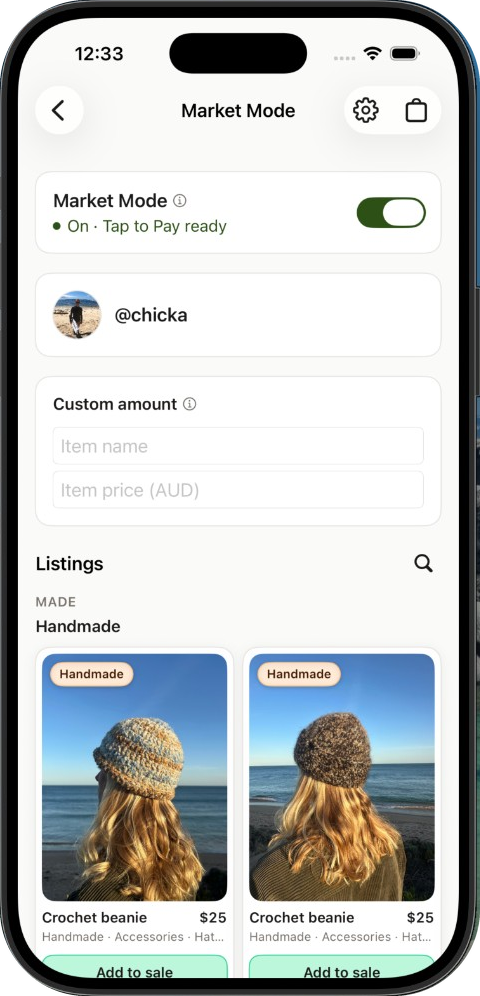
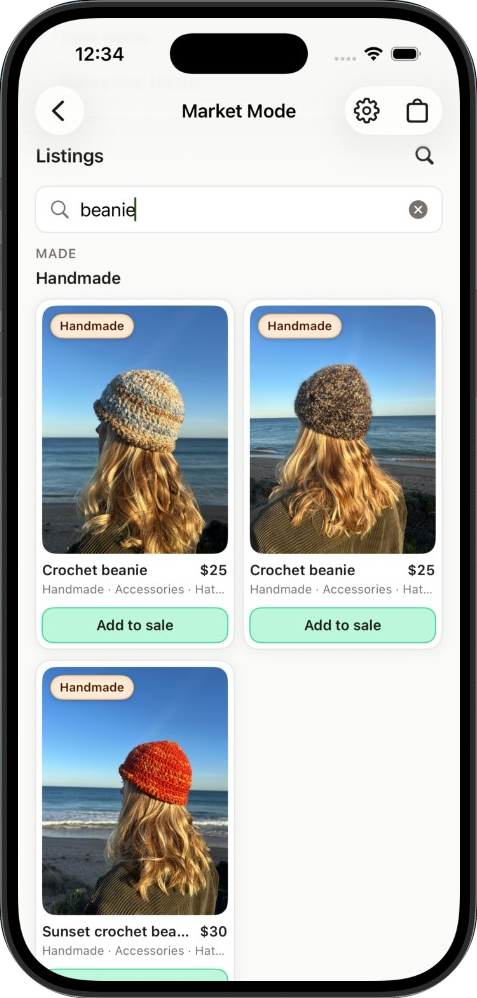
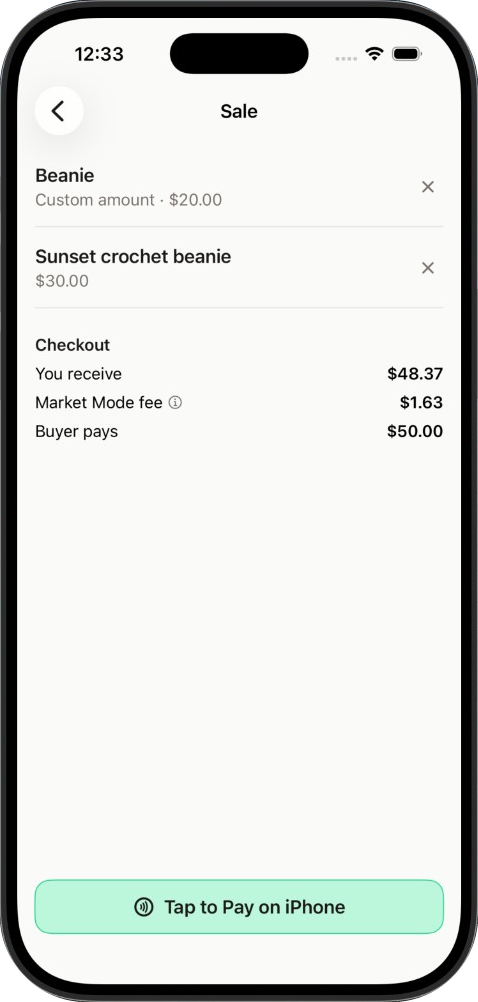
Add an item to your sale from the listings you have on Oppy by scrolling or searching. You can also add custom amounts for items you don't have listed on Oppy. The buyer pays the full amount and the Market Mode fee is charged to you. Listings sold at your market stall or pop-up will also be marked as sold and removed from the online marketplace — so you don't need to do any other stock management or admin — Oppy handles that.
03
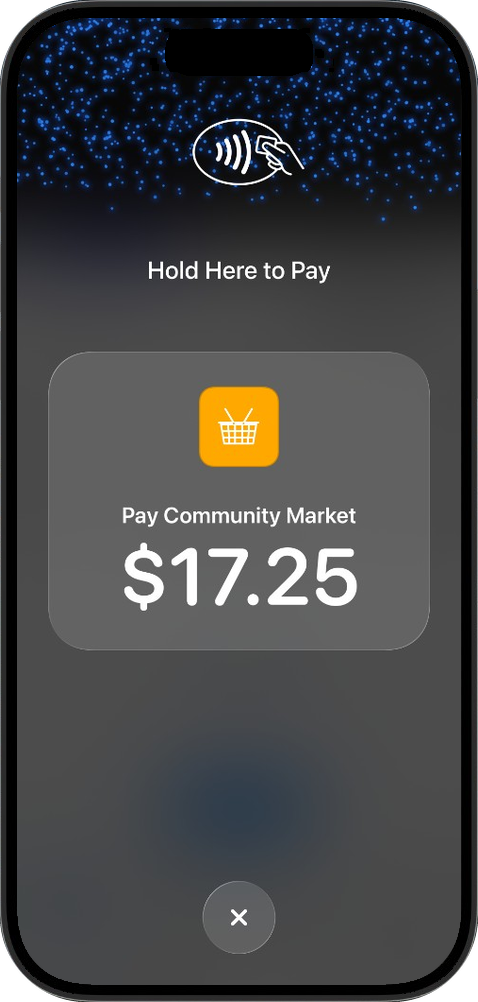
Press the Tap to Pay on iPhone or Tap to Pay button — this brings up the payment screen. The buyer simply holds their contactless card, phone or watch against your phone until the tap is complete.
04
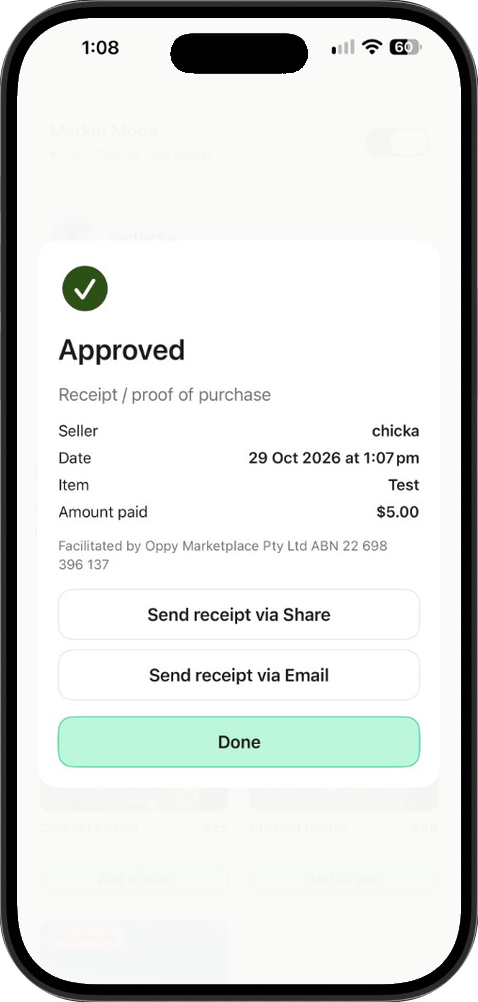
Once the tap is complete, you can offer a digital receipt or tax invoice for GST registered businesses. Your funds will be sent instantly to your Stripe Connect balance.


The Market Mode fee
- The Market Mode fee is 1.65% of the agreed price plus $0.80.
- The buyer pays the agreed price only. The fee is taken from what you receive, not added as a surcharge.
- This supports the easy in-person payments, Oppy's customer support and the smooth operation of Oppy Marketplace.
- The fee is shown in the app before you start the tap.
Your stall day
- Market Mode is for in-person stall sales. It is separate from postage and Oppy Local checkout.
- While Market Mode is on, buyers cannot purchase your listings online. They can still view them, message you, and make offers.
- Turn Market Mode off when you want online checkout again.
Refunds
- You can refund a tap in the app — find the refund button in Options for the transaction you need to refund.
- You can offer partial or full refunds.
- If the in-app refund cannot reverse the transfer, contact Oppy Support.
- Cash or other sales you mark without a tap have no card payment to refund.
Receipts and tax invoices
- Offer the buyer a digital receipt after every tap.
- The receipt names your stall and, for a business, your ABN.
- You remain the supplier of the goods. GST-registered businesses can send a tax invoice from the sale.
- A tax invoice of $1,000 or more (including GST) also needs the buyer’s identity or ABN.